Secure your business voice before 2FA becomes mandatory.
Your password is important — but it shouldn’t be your only line of defense. Phonebooth is moving to mandatory two-factor authentication. Set it up now so you can learn the process, test it, and get help before enforcement begins.
Set Up 2FA Now →Open Voice Portal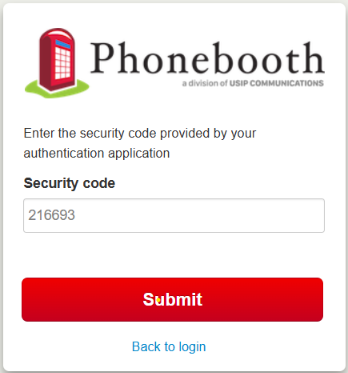
Why two-factor authentication matters
Passwords can be reused, phished, guessed, or exposed. Two-factor authentication adds a second verification step from a device you control, making it much harder for someone to sign in with a password alone.
Protect Account Access
A password alone no longer completes a password-based login once 2FA is enabled.
Protect Voice Settings
Your portal controls voicemail, call routing, caller settings, and other business communication features. Stronger access protection helps safeguard those controls.
Prepare Before Enforcement
Enable it now while you have time to become comfortable with the workflow and contact support if questions come up.
Set up Google Authenticator
Follow these steps once. After setup, your normal password-based sign-in will include a current code from Google Authenticator.
Download Google Authenticator
Install Google Authenticator on the mobile device you will use for sign-in codes.
Log in to your Voice Portal
Open the Phonebooth Voice Portal and sign in with your existing account.
Open your Profile
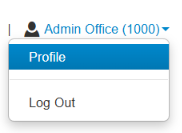
At the top-right corner of the Voice Portal, open your account menu and select Profile.
Choose Google Authenticator
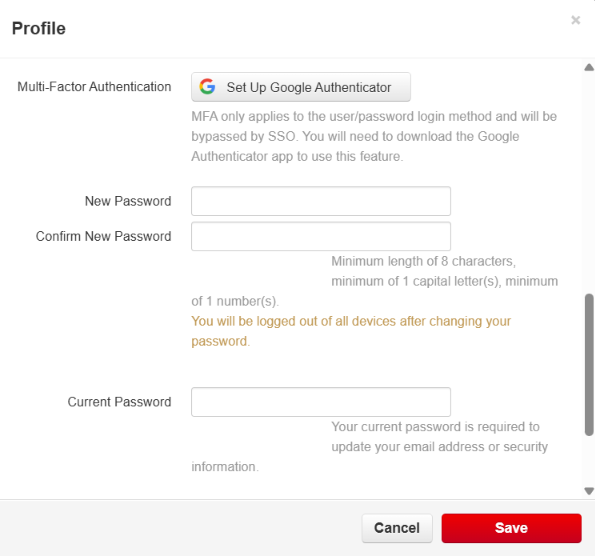
In the Multi-Factor Authentication section, select Set Up Google Authenticator.
Scan your QR code
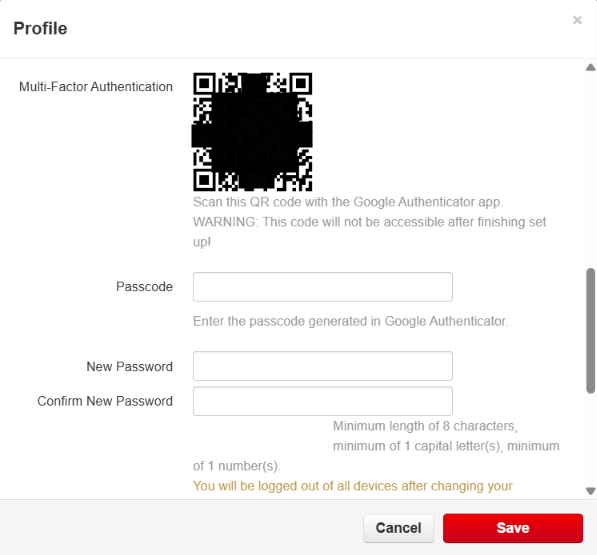
Open Google Authenticator on your phone and scan the QR code shown in your Phonebooth Profile. Google Authenticator will add the Phonebooth account and begin generating time-based security codes.
Verify and save
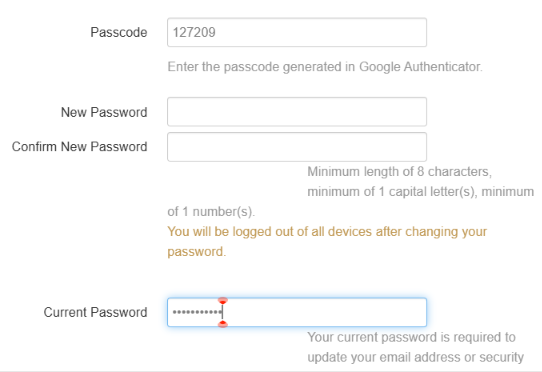
Enter the current code shown in Google Authenticator in the Passcode field. Enter your existing Phonebooth password in Current Password, then select Save. You do not need to change your password unless you intend to.
Log out and test 2FA
Log out of the Voice Portal and sign back in. After your username/password is accepted, Phonebooth will request the current security code from Google Authenticator. Enter the code to complete sign-in.
What changes after you enable 2FA?
Your username and password still start the sign-in process. Phonebooth then asks for the current code from Google Authenticator before access is completed.
Enter your credentials
Sign in to the Voice Portal with your normal username and password.
Open Authenticator
Find your Phonebooth entry in Google Authenticator and use the current time-based code.
Complete sign-in
Enter the code on the Phonebooth security screen to finish authentication.
Common questions
What if my code is rejected?
Use the newest code displayed in Google Authenticator and confirm your phone’s date and time are set automatically. If the problem continues, contact Phonebooth Support.
What if I lose or replace my phone?
Contact Phonebooth Support before you are locked out if possible. Do not send screenshots of your QR code or one-time codes as a recovery method.
Does Google Authenticator need cellular service to generate a code?
No. Google Authenticator can generate verification codes on the device without a cellular or network connection.
Why are we asking customers to enable 2FA early?
Early enrollment gives you time to learn the process and test your sign-in before 2FA becomes a mandatory account-security requirement.
Need help setting it up?
Our support team can help with the Phonebooth setup process.